Fix WebDisplays Black Screen and MCEF Errors
A screen that stays black is the most reported WebDisplays problem. The good news: nearly every case comes down to a handful of causes, and you can work through them in order in about ten minutes.
Start with the first-run download
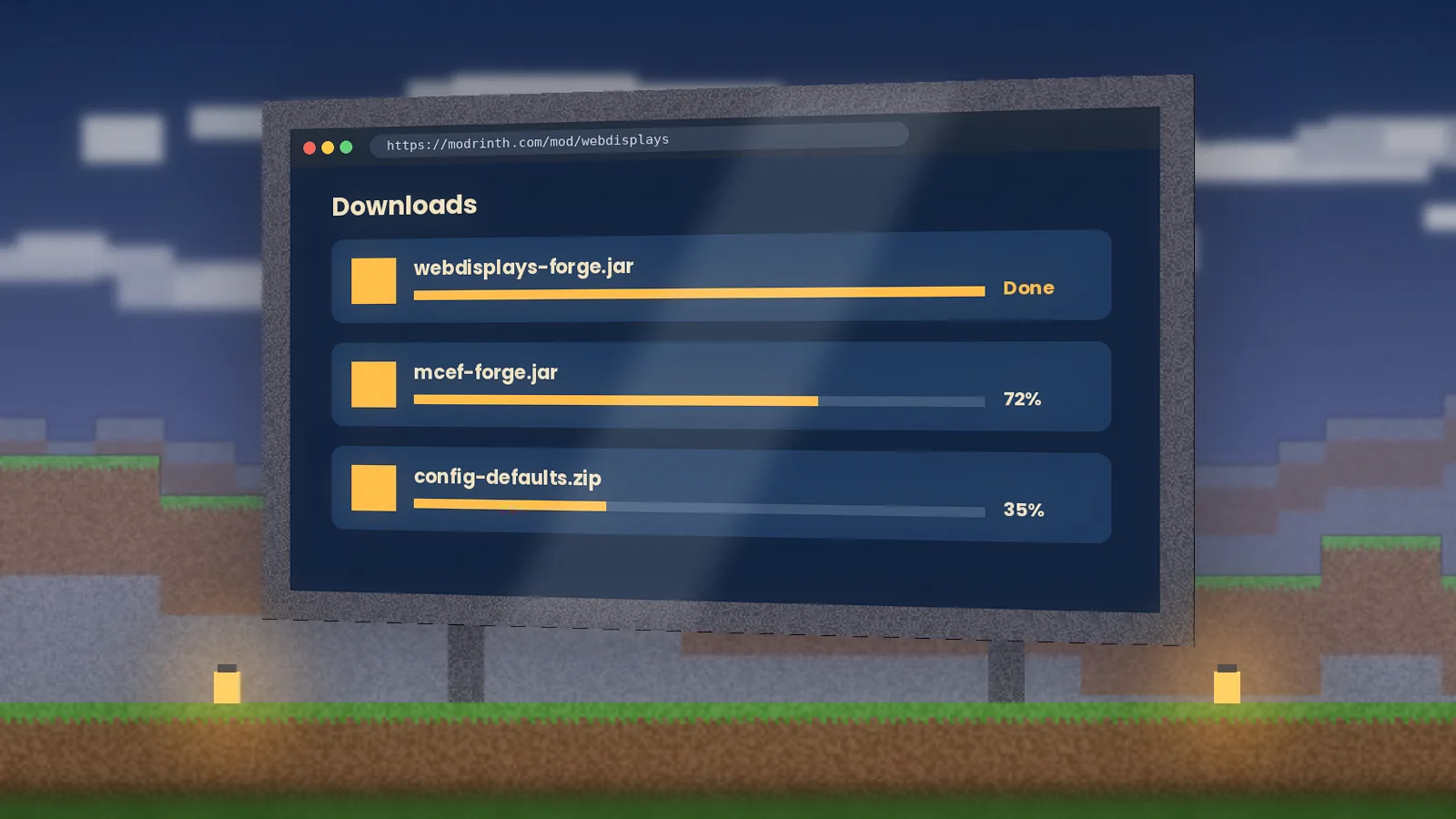
MCEF downloads its Chromium runtime the first time you launch. On slow connections this can take several minutes, and screens show nothing until it finishes. Launch the game, wait at the main menu for the download message to complete, then restart before testing a screen.
If your network blocks the download, the log will show a connection error. Try another network or allow Java through your firewall.
Check version matching
Four versions must agree: Minecraft, your loader, WebDisplays and MCEF. Open the WebDisplays file page, note the MCEF version it requires, and make sure that exact file is in your mods folder. Remove any second copy of MCEF, which can happen when a modpack already includes one.
Read latest.log
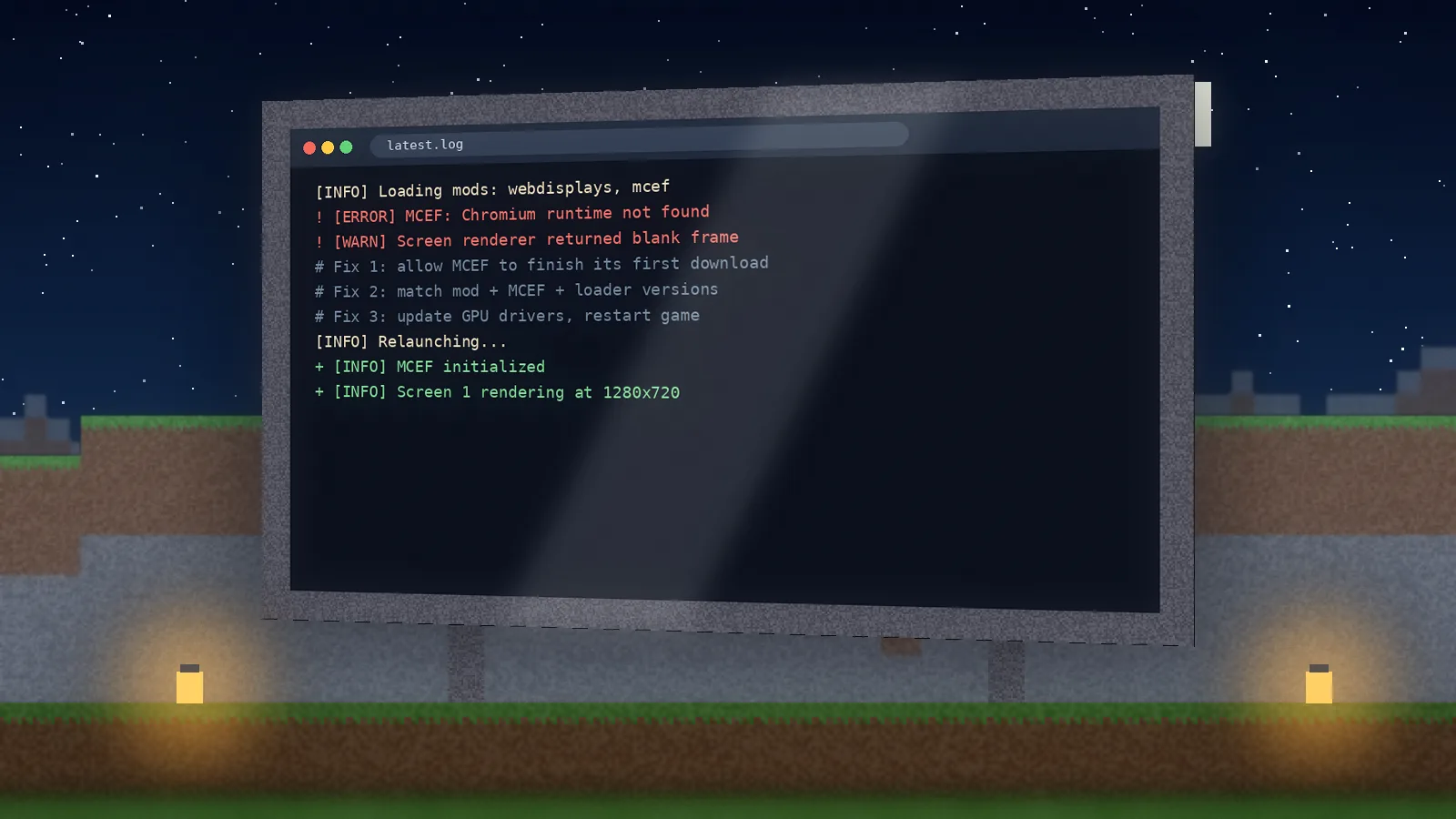
Open .minecraft/logs/latest.log and search for "MCEF" and "webdisplays". Lines to look for:
[ERROR] MCEF: Chromium runtime not found      → download incomplete
[ERROR] ... UnsatisfiedLinkError ... libnss3  → missing Linux library
[WARN]  Screen renderer returned blank frame  → GPU or driver issue
Platform-specific fixes
- Windows: update your GPU driver and make sure the game runs on your dedicated GPU on laptops.
- macOS: on Apple silicon, use an MCEF build that lists arm64 support, and allow Java network access when prompted.
- Linux: install the libraries the log names (commonly
libnss3and related packages) with your package manager.
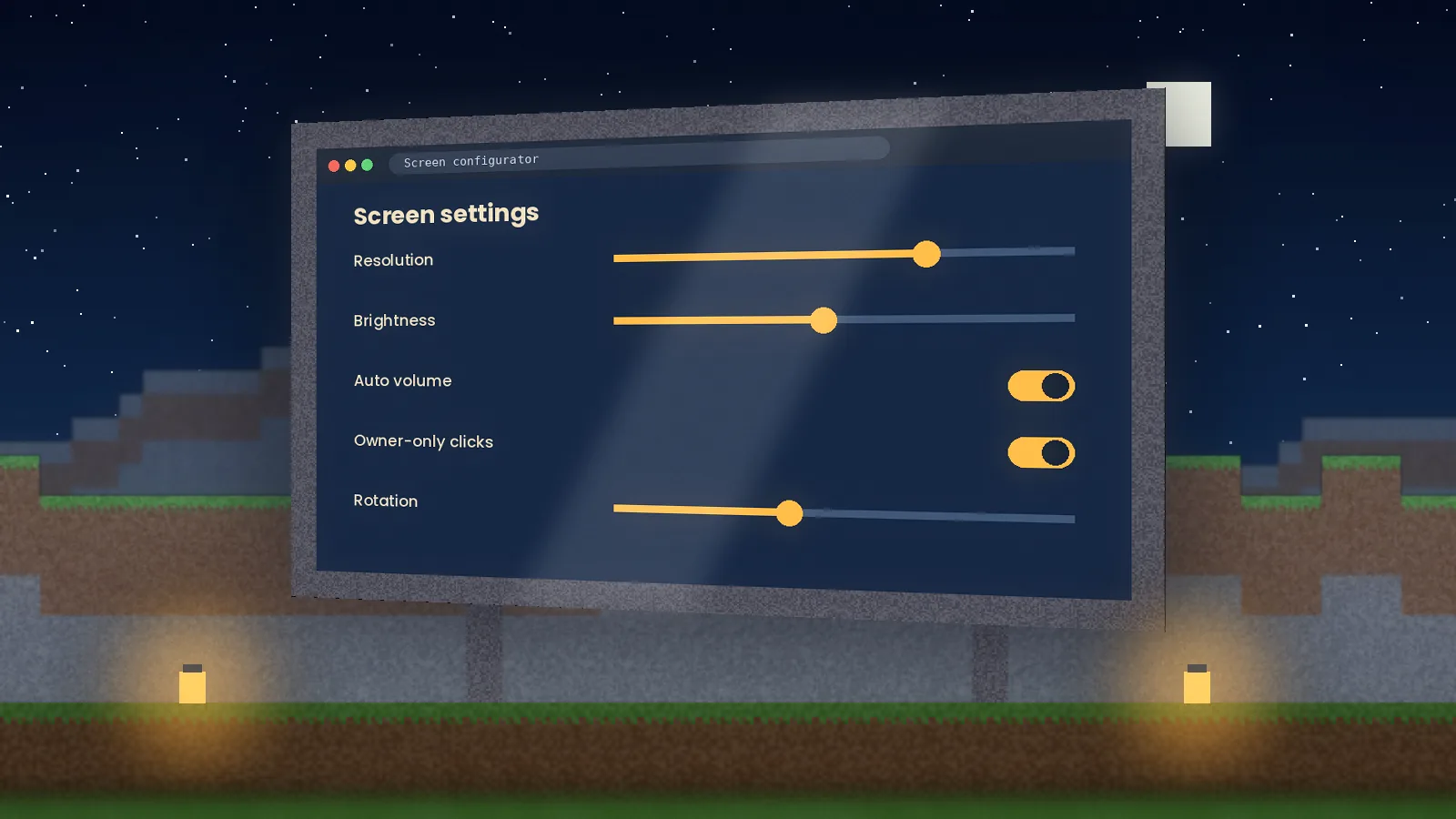
As a quick test, lower the screen's resolution in the configurator. If a small screen works and a large one doesn't, you're hitting a performance limit, not a bug.
Still stuck?
Check the known issues in our FAQ, then contact us with your Minecraft version, loader, both jar names and the error lines from your log. That information lets us point you to the fix quickly.
Quick answers
Why is my WebDisplays screen black?
A black screen usually means the embedded browser failed to start. Common causes are a missing or incomplete browser download on first launch, a blocked connection by a firewall or antivirus, or an incompatible graphics driver. Restart the game with an internet connection, allow Java through the firewall, update GPU drivers, and check latest.log for browser errors.
Should I delete the browser cache folder to fix errors?
Yes, as a troubleshooting step it often helps. Close Minecraft, locate the browser or MCEF folder inside your game directory, and delete or rename it so the mod downloads fresh files on the next launch. Keep a backup of your mods folder first. If the problem continues, share the log on the official issue tracker.