How to Download Web Displays Mod Safely in 2026
Searching for a Web Displays Mod download turns up dozens of sites, and many of them are not what they seem. Some wrap the mod in an installer, some host outdated builds, and a few bundle adware. This guide shows you the only sources worth using and how to confirm that the file you got is genuine.
The official sources
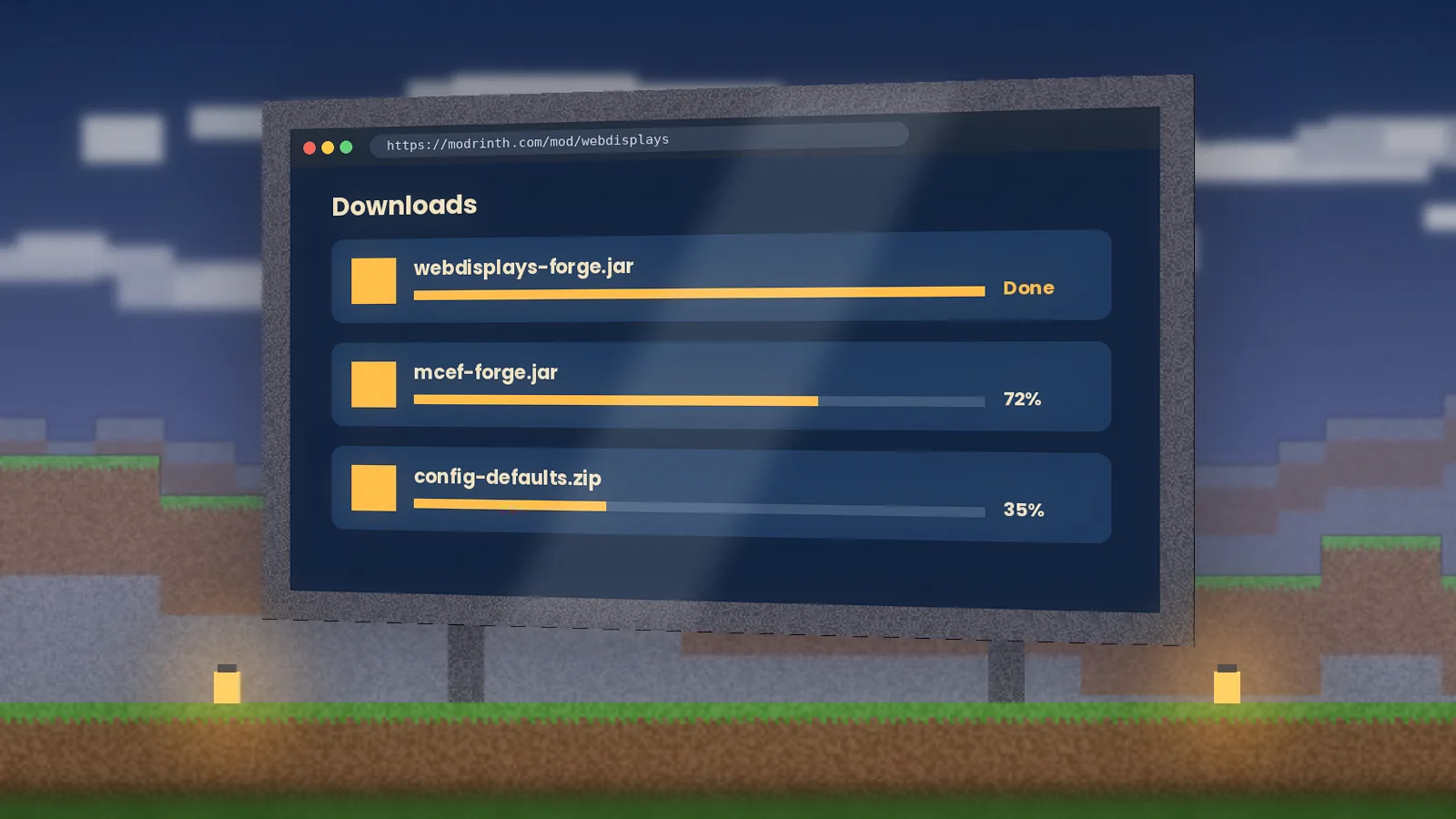
WebDisplays is distributed through three places. Modrinth is our first recommendation because every file shows its supported versions, loader and hash on one page. CurseForge hosts the same releases and integrates with the CurseForge App if you manage modpacks there. The original GitHub repository holds the 1.12.2 source code for anyone who wants to read or build it.
Our own download page links to these listings and nothing else. We never re-host the jar, which means you always get the maintainer's latest file.
Picking the right file
Open the files tab and filter by your Minecraft version first, then by loader. Three details must line up:
- Minecraft version, for example 1.20.1 or 1.12.2.
- Loader, usually Forge.
- MCEF version, listed as a dependency on the same page.
If there is no file for your exact version, there is no official build. Don't grab a jar for a nearby version and hope for the best; our version guide explains why that almost always crashes.
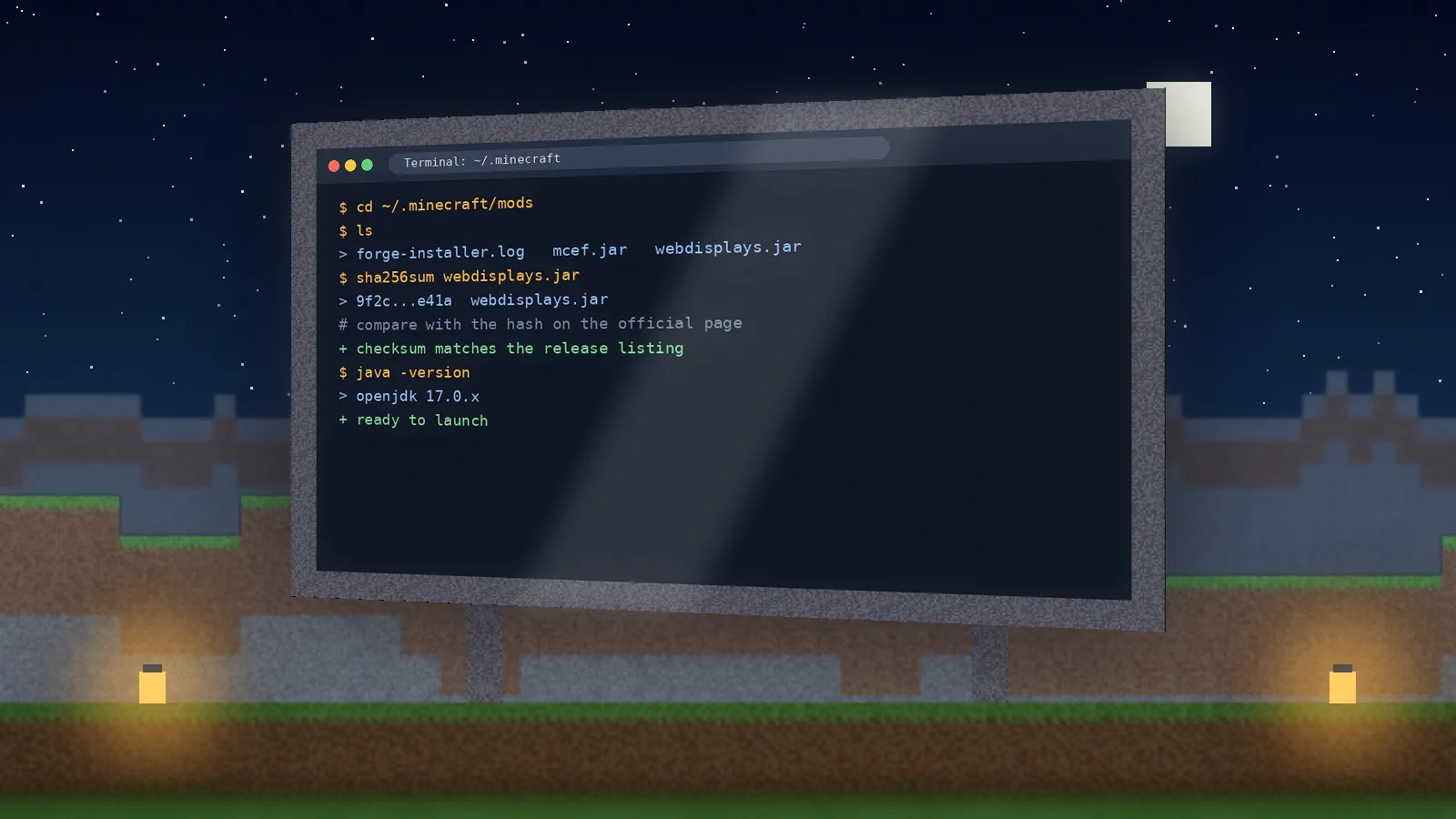
Verifying the download
A SHA256 hash is a fingerprint of a file. If even one byte changes, the fingerprint changes. Modrinth shows the hash for each file, so you can compare it with the one your computer calculates.
# Windows (Command Prompt)
certutil -hashfile webdisplays.jar SHA256

# macOS and Linux
shasum -a 256 webdisplays.jar
If the two strings match, the file is exactly what the maintainer uploaded. For extra peace of mind, upload the jar to VirusTotal; official builds come back clean.
Red flags to avoid
- The download is an
.exe,.msior.apkinstead of a.jar. - The site asks you to disable your antivirus.
- You're sent through several ad pages or a "download manager".
- A "Bedrock" or "MCPE" version is offered. The mod is Java-only, as our Bedrock article explains.
What to do next
With a verified jar and its matching MCEF file, you're ready to install. Follow the installation guide for your operating system, then read the user guide to build your first screen.
Quick answers
Where is the safest place to download Web Displays Mod?
The safest sources are the official project listings on Modrinth and CurseForge, plus the developer's GitHub releases page. These platforms host files uploaded by the mod's own team and scan them automatically. Avoid mirror sites that repackage the jar inside installers or ZIP bundles, because those are the most common way modified or malicious files reach players.
How can I verify the file I downloaded?
Open a terminal in your downloads folder and generate a SHA256 hash with certutil on Windows or shasum -a 256 on macOS and Linux. Compare the result with the hash or file details shown on the official listing. If the values differ, delete the file and download it again directly from Modrinth, CurseForge or GitHub.