Install WebDisplays Mod on Forge (and What About Fabric?)
Installing WebDisplays takes about five minutes once you know the order. This walkthrough covers a clean Forge setup and answers the most-searched question about the mod: does WebDisplays mod Fabric support exist?
Before you start
You need Minecraft Java Edition, the correct Java version for your game (Java 8 for 1.12.2, Java 17 for 1.18 to 1.20.4, Java 21 for newer releases) and the jars from our download page. Back up any world you plan to open with a new mod.
Installing on Forge
- Download the Forge installer for your exact Minecraft version and run it. Choose Install client.
- Open the Minecraft Launcher, select the new Forge profile and press Play. Quit at the title screen.
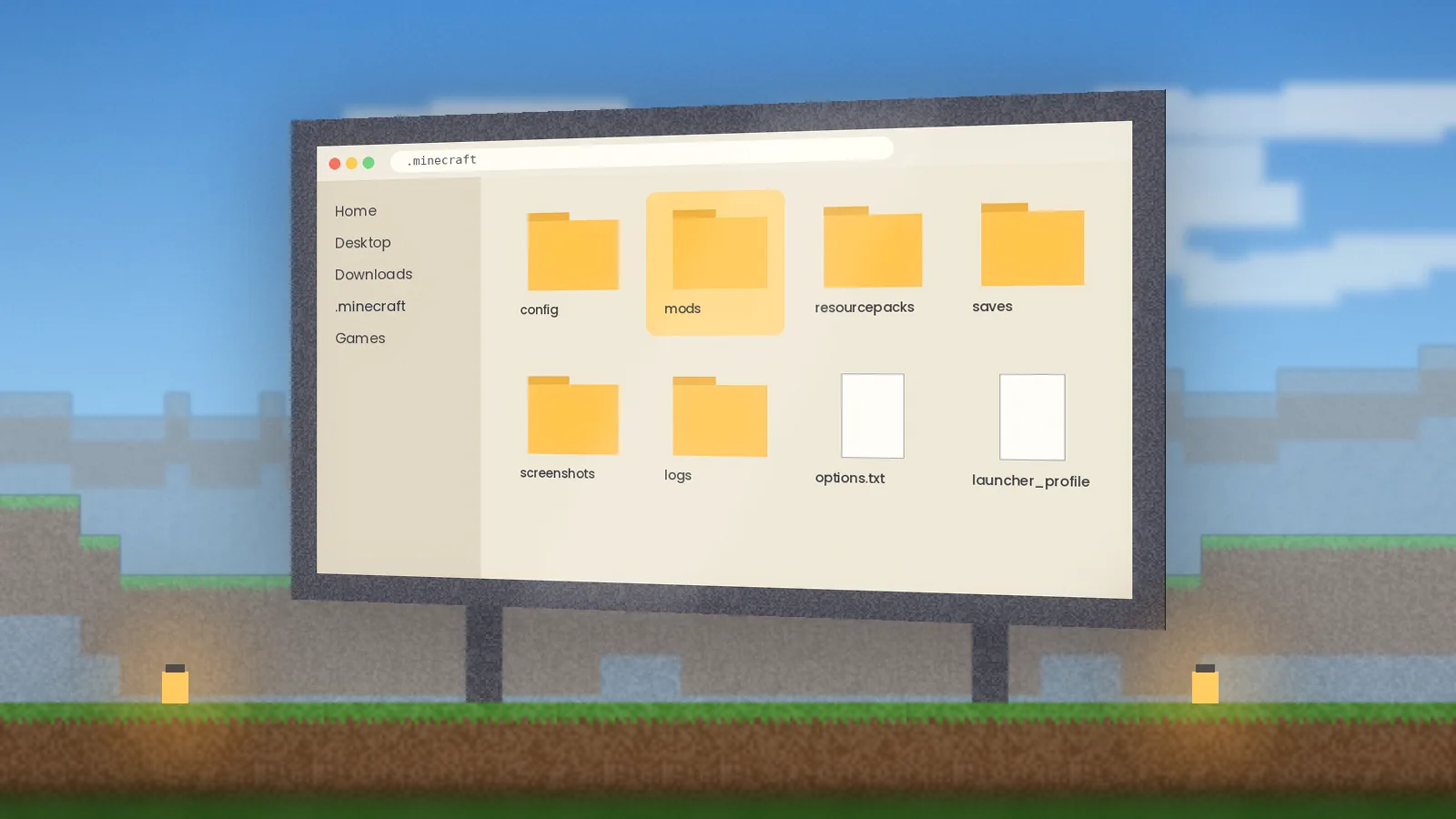
- Open your mods folder:
%appdata%\.minecraft\modson Windows,~/Library/Application Support/minecraft/modson macOS,~/.minecraft/modson Linux. - Copy in the WebDisplays jar and the MCEF jar named on its listing.
- Launch again and let MCEF download its Chromium runtime. A progress message appears the first time.
What about Fabric?
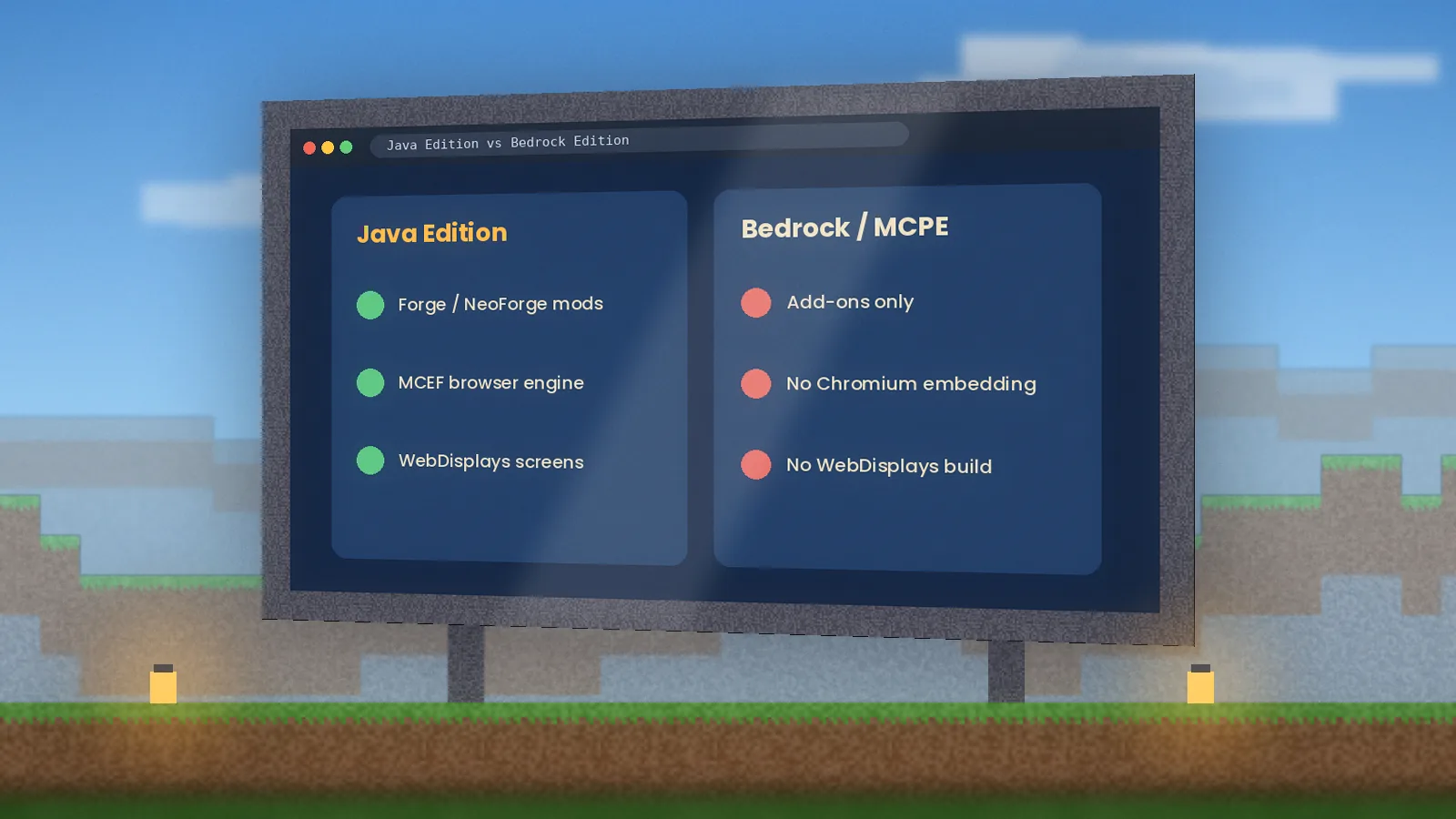
WebDisplays has always been a Forge-first project. Whether a Fabric or NeoForge build exists depends on your Minecraft version and on what the maintainers have released. The rule is simple: if the official listing shows a Fabric file for your version, use it with the Fabric dependencies it lists. If it doesn't, there is no official Fabric build.
Be wary of "WebDisplays Fabric" jars on random sites. They are usually renamed Forge files that crash, or worse. Compatibility layers that run Forge mods on Fabric exist, but browser-embedding mods are among the hardest to bridge, so expect problems and test on a copy of your world.
Using a custom launcher
Prism Launcher, the CurseForge App and Modrinth App create a separate folder for each instance. Create a Forge instance for your version, open its folder from the launcher and drop the jars into mods. Modrinth App can also install WebDisplays and its dependencies for you in one click.
First-launch checklist
- The main menu shows WebDisplays and MCEF in the Mods list.
- No red errors about MCEF in
latest.log. - A test screen on a wall loads a simple site such as a wiki page.
If a screen stays black, jump to our black screen fix guide. Otherwise, head to the user guide to set up keyboards, remotes and permissions.
Quick answers
Does Web Displays Mod need Forge or Fabric?
Most published builds target Forge, so install the Forge loader that matches your Minecraft version first. Some versions may have community ports or Fabric listings, so always check the loader tag on the Modrinth or CurseForge file before downloading. Using a jar built for the wrong loader is the most common reason the game crashes on startup.
Where do I put the WebDisplays jar file?
Place the jar inside the mods folder of your Minecraft game directory. On Windows that is usually %appdata%\.minecraft\mods, on macOS ~/Library/Application Support/minecraft/mods, and on Linux ~/.minecraft/mods. If you use a launcher such as Prism or CurseForge, open the instance folder from the launcher and use its own mods directory instead.